MCP Server for Agents
View as MarkdownStarting in v26.24, Materialize provides a built-in materialize-agent Model
Context Protocol (MCP) server (/api/mcp/agent, port 6876) for querying data
products. The server is provided directly by Materialize; no sidecar process or
external server is required.
Overview
The materialize-agent MCP server lets AI agents query business-facing data
products over HTTP. You can connect an MCP-compatible client (such as Claude
Code, Claude Cowork, or Cursor) to the MCP server and ask the agent to discover
and query your data products using either natural language or SQL:
- SELECT * FROM mcp_product_performance LIMIT 5;
- What’s the
total_revenuefor product 42? - Perform a Pareto analysis on my products.
Connection methods
There are two ways to authenticate to the materialize-agent MCP server. Your
method determines whether you need to set up a dedicated agent query
environment:
-
OAuth: Starting in v26.30, your MCP client can sign you in through your browser. The agent connects as your user role with your existing privileges. You can skip the environment setup and go to Method 1: OAuth. Available for Cloud and for Self-Managed using SSO.
-
Token-based: You provide Base64-encoded credentials (the MCP token) to the client. The agent connects as a dedicated, least-privilege service account (i.e., a separate login role acting as a service account). Set up the agent query environment and data products first and then go to Method 2: Token-based authentication. Available for Cloud, Self-Managed, and the Emulator
Set up the agent query environment and data products
This setup is required only for the token-based connection method. If you’re using OAuth, you can skip to Connect to the MCP server.
Starting in v26.27, the query
tool is enabled by default
and can execute arbitrary SELECT queries (including joins) on all objects
the agent can access (including system catalog objects), not just those
discoverable by the get_data_products
tool.
To prevent agents from reading system catalog objects, set
restrict_to_user_objects on each agent role.
In Materialize, querying data products (i.e., running SELECT)
requires:
SELECTprivileges on each directly referenced data product.USAGEprivileges on the schemas that contain the data products.USAGEprivileges on the cluster where the query runs.
To use the materialize-agent MCP server, we recommend:
- Creating a dedicated query environment for agents.
- Defining curated data products within that environment.
materialize database.
Create an agent query environment
In general, AI agents that access the materialize-agent MCP server should be
isolated to:
| Query environment | Granted privileges |
|---|---|
| Serving cluster dedicated to agents | USAGE on this cluster only |
| Schema dedicated to agents | USAGE on this schema only |
-
Create a dedicated cluster and schema:
CREATE CLUSTER mcp_cluster SIZE '25cc'; CREATE SCHEMA materialize.mcp_schema; -
Create a functional role
mcp_agentthat can be assigned to individual agents:CREATE ROLE mcp_agent; -
Grant privileges to the functional role:
GRANT USAGE ON CLUSTER mcp_cluster TO mcp_agent; GRANT USAGE ON SCHEMA materialize.mcp_schema TO mcp_agent; -
Set the default cluster and schema for
mcp_agenttomcp_clusterandmcp_schema:ALTER ROLE mcp_agent SET cluster TO mcp_cluster; ALTER ROLE mcp_agent SET search_path TO mcp_schema;Later on, you will also set these role configurations on the specific agent roles since role configurations are not inherited; only privileges are inherited.
-
Recommended. Restrict the role to user objects only so that the
querytool cannot read system catalog objects. You must run the following as a superuser:ALTER ROLE mcp_agent SET restrict_to_user_objects = true;As mentioned before, role configurations are not inherited; you must also set it on each specific agent role. Setting the parameter on the functional role is recommended as a precaution in case the role is ever used directly to run queries.
Define data products and grant access
Once a dedicated agent environment is set up, create the curated data products in the dedicated cluster and schema rather than granting access to existing objects in other schemas; this allows you to:
-
Project, mask, or filter their contents before exposing them to the agent.
-
Restrict the agent’s
USAGEto the dedicated schema.
-
To expose an existing object (such as a table, view, or materialized view) to the agent, create a view in
mcp_schemathat selects from it, then add an index on that viewIN CLUSTER mcp_cluster. If the existing object is a materialized view, the index reuses the already-maintained result instead of recomputing it. -
When a view (regular view or materialized view) is indexed, the indexed columns are surfaced in the tool input schema as preferred lookup keys, enabling index point-lookups instead of index scans.
-
Adding comments to the data product and its columns is optional but recommended. Comments are surfaced to the agent to help it better understand when and how to use the data products:
-
Object-level comments: When a data product is indexed, if the index also has a comment, the index’s comment is surfaced to the agent. Otherwise, the view or materialized view’s comment is surfaced.
-
Column comments: Column comments are made on the view or materialized view. Indexes do not support comments on columns.
-
Define data products
The following example assumes a materialized view sales.product_performance
exists.
-
Create a view in the dedicated schema that selects from the existing materialized view:
CREATE VIEW materialize.mcp_schema.mcp_product_performance AS SELECT * FROM sales.product_performance; -
Index the view
IN CLUSTER mcp_cluster. The indexed columns are surfaced to the agent as preferred lookup keys:CREATE INDEX mcp_product_performance_idx IN CLUSTER mcp_cluster ON materialize.mcp_schema.mcp_product_performance (product_id); -
Optional but recommended. Add comments to the view and column(s):
COMMENT ON VIEW materialize.mcp_schema.mcp_product_performance IS
'Per-product performance metrics including stock status. Use this to answer
questions about a specific product''s sales performance or inventory.';

COMMENT ON COLUMN materialize.mcp_schema.mcp_product_performance.total_revenue IS
'Lifetime gross revenue for this product, computed as SUM(quantity *
unit_price) across all order_items. Returns 0 for products that have
not been ordered yet.';

COMMENT ON COLUMN materialize.mcp_schema.mcp_product_performance.stock_status IS
'Derived inventory state: ''out_of_stock'' (stock_quantity = 0),
''low_stock'' (< 20), or ''in_stock'' (>= 20).';
Comments are surfaced to the agent to help the agent better understand when and how to use the data products.
Grant access
-
Grant
SELECTprivilege on the data products. For each existing data product, grantSELECTto themcp_agentfunctional role:GRANT SELECT ON materialize.mcp_schema.mcp_product_performance TO mcp_agent; -
Optionally, set a default privilege to automatically grant
SELECTto themcp_agentfunctional role for future data products created in themcp_schema:ALTER DEFAULT PRIVILEGES FOR ROLE <creator_role> -- creator of the object IN SCHEMA materialize.mcp_schema GRANT SELECT ON TABLES TO mcp_agent;-
The
FOR ROLE <creator_role>clause scopes the default privilege to those objects created by that role. Specify the role that will actually create your data products. -
TABLESincludes views and materialized views also. -
ALTER DEFAULT PRIVILEGESonly applies to objects created after theALTER DEFAULT PRIVILEGESstatement runs. For objects that already exist, useGRANT SELECT ON <object> TO mcp_agent.
-
Connect to the MCP server
Connect using OAuth or token-based authentication, as described in Connection methods.
Method 1: OAuth
Available starting in v26.30
With OAuth, the agent connects as your user role with your existing privileges. It is not confined to a dedicated agent query environment and can read anything your user can. You do not need to set up the agent query environment to connect this way.
If you have set up the agent query environment and data
products, you can
optionally grant the mcp_agent functional role to your user. This grants
access to the curated data products if your user does not already have the
necessary privileges.
GRANT mcp_agent TO <your_user>;
To limit what the agent can reach, set
restrict_to_user_objects
on your role (this excludes the system catalog only). For a confined,
least-privilege agent, use a token-based service
account instead.
Step 1. Get your MCP server URL
To connect, the MCP-compatible client needs the materialize-agent MCP server
URL: <baseURL>/api/mcp/agent.
-
Log in to the Materialize Console.
-
Click the Connect link (lower-left corner) to open the Connect modal and click on the MCP Server tab.
-
In the Connect your client section, click on the Agent tab.
You can find your
materialize-agentMCP server URL<baseURL>/api/mcp/agentas part of the code block.If using Claude Code as your MCP-compatible client, you can copy the code block wholesale for the next step.
Self-Managed deployments using OAuth require SSO, which uses TLS. Your identity provider may also need additional configuration for MCP clients, such as a pre-registered OAuth client if your IdP does not support anonymous dynamic client registration. See Connecting MCP clients.
Get your MCP server URL from the Materialize Console:
-
Log in via the Materialize Console.
-
Click the Connect link (lower-left corner) to open the Connect modal and click on the MCP Server tab.
-
In the Connect your client section, click on the Agent tab.
You can find your
materialize-agentMCP server URL<baseURL>/api/mcp/agentas part of the code block.If using Claude Code as your MCP-compatible client, you can copy the code block wholesale for the next step.
Step 2. Configure your MCP client
In the following, replace <baseURL> with the MCP server URL from Step
1. For Cloud, the base URL has the format
https://<region-id>.materialize.cloud.
-
Add the
materialize-agentMCP server as local-scoped server (i.e., the configurations are stored in~/.claude.json):claude mcp add --transport http "materialize-agent" \ "<baseURL>/api/mcp/agent"For Self-Managed deployments using OAuth with a pre-registered OIDC client, add
--client-idand--callback-port:claude mcp add --transport http "materialize-agent" \ "<baseURL>/api/mcp/agent" \ --client-id <YOUR_CLIENT_ID> --callback-port 8080The
--callback-portvalue must match the port in thehttp://localhost:<port>/callbackredirect URI registered on the OIDC client. See Connecting MCP clients for the full IdP configuration. -
Restart Claude Code. On first connection, your browser opens to complete sign-in and connect.
-
Upon successful connection, you can Start querying.
To configure Claude Cowork/Chrome, add a custom connector. The exact steps depend on your Claude plan; for example:
- Organization settings → Connectors → Add → Custom → Web, or
- Customize → Connectors → + → Add custom connector.
Refer to the Add a custom
connector
section of the Get started with custom connectors using Remote
MCP
guide to get the exact steps for your plan. For the Remote MCP server URL
field, enter your materialize-agent MCP server URL.
For additional information, including network requirements and security and privacy concerns, see the Get started with custom connectors using Remote MCP article.
-
Add the
materialize-agentMCP server entry to your local MCP settings file (~/.cursor/mcp.json).- When merging into an existing
mcpServersobject, remember to add commas between entries. - If the
mcpServersfield does not already exist, add it as well.
{ "mcpServers": { "materialize-agent": { "url": "<baseURL>/api/mcp/agent" } } } - When merging into an existing
-
Restart Cursor. On first connection, your browser opens to complete sign-in and connect.
-
Upon successful connection, you can Start querying.
Method 2: Token-based authentication
Step 1. Create the specific agent role
For your specific agent, create the dedicated role with which the agent will connect.
-
Log in to the Materialize Console.
-
Create a dedicated service account for your specific AI agent (only an Org admin can create service accounts).1
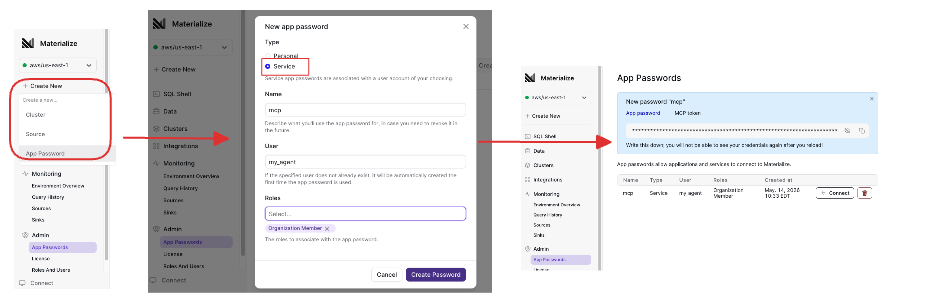
For example, to create a new
my_agentservice account:-
Click + Create New and select App Password to open the New app password modal.
-
In the New app password modal, specify:
Field Value Type Service Name MCP User my_agent Roles Organization Member -
Click Create Password. The Password and the MCP Token are created.
-
Save the MCP Token in a secure place. Once you navigate away, the password and the MCP token will not display again. You will use the MCP Token to connect.
-
-
Ensure the corresponding database role has been created, either by:
-
Manually issuing the following commands in the SQL Shell:
CREATE ROLE my_agent; -
Or, connecting to Materialize (not the MCP server) using the new account. On first connection, Materialize automatically creates the corresponding database role if it does not exist.
-
-
Grant
mcp_agentrole to your agent:GRANT mcp_agent TO my_agent; -
Set the default cluster and schema for
my_agenttomcp_clusterandmcp_schema:ALTER ROLE my_agent SET cluster TO mcp_cluster; ALTER ROLE my_agent SET search_path TO mcp_schema;You set these role configurations on the individual roles as configurations are not inherited.
-
Recommended. Restrict the role to user objects only so that the
querytool cannot read system catalog objects. You must run the following as a superuser (an Organization Admin):ALTER ROLE my_agent SET restrict_to_user_objects = true;
-
Avoid using a personal app account instead of a service account as a personal app account would include all your roles and privileges as well. ↩︎
-
Create a login role for your specific AI agent, replacing
<your_app_password>with an actual password:CREATE ROLE my_agent LOGIN PASSWORD '<your_app_password>'; -
Grant
mcp_agentrole to your agent:GRANT mcp_agent TO my_agent; -
Set the default cluster and schema for
my_agenttomcp_clusterandmcp_schema:ALTER ROLE my_agent SET cluster TO mcp_cluster; ALTER ROLE my_agent SET search_path TO mcp_schema;You set these role configurations on the individual roles as configurations are not inherited.
-
Recommended. Restrict the role to user objects only so that the
querytool cannot read system catalog objects. You must run the following as a superuser:ALTER ROLE my_agent SET restrict_to_user_objects = true;
-
Create a role for your specific AI agent (the Emulator does not support the
LOGIN PASSWORDoption):CREATE ROLE my_agent; -
Grant
mcp_agentrole to your agent:GRANT mcp_agent TO my_agent; -
Set the default cluster and schema for
my_agenttomcp_clusterandmcp_schema:ALTER ROLE my_agent SET cluster TO mcp_cluster; ALTER ROLE my_agent SET search_path TO mcp_schema;You set these role configurations on the individual roles as configurations are not inherited.
-
Recommended. Restrict the role to user objects only so that the
querytool cannot read system catalog objects. You must run the following as a superuser:ALTER ROLE my_agent SET restrict_to_user_objects = true;
Step 2. Get connection details
When connecting to the MCP server, the MCP-compatible client needs:
-
The Base64-encoded
user:passwordcredentials (i.e., the MCP token) of your agent. -
The
materialize-agentMCP server URL:<baseURL>/api/mcp/agent.
-
Log in to the Materialize Console.
-
Go to App Passwords and for the service account created
my_agent, click Connect. -
Click on the MCP Server tab.
-
In the Get your MCP token section1,
-
If using
my_agent, use the MCP Token that was returned when you created the service account. You can skip to the next step. -
Otherwise, you can:
-
Create a different service account and use the generated MCP token; or
-
Use an existing service account, Base64 encoding the
role:passwordto generate the MCP token. Ensure the existing account does not have more privileges than necessary.
-
-
-
In the Connect your client section, click on the Agent tab.
You can find your
materialize-agentMCP server URL<baseURL>/api/mcp/agentas part of the code block.If using Claude Code as your MCP-compatible client, you can copy the code block wholesale for the next step.
-
Avoid using a personal app account instead of a service account as a personal app account would include all your roles and privileges as well. ↩︎
-
Encode your agent role’s credentials
<role>:<password>in Base64 to create the MCP token, replacing<your_app_password>with the actual password:printf 'my_agent:<your_app_password>' | base64 -
Find your deployment’s host name to determine your
materialize-agentMCP URL:http://<host>:6876/api/mcp/agent-
For your Self-Managed Materialize deployment in AWS/GCP/Azure, the
<host>is the load balancer address. If deployed via Terraform, run the Terraform output command for your cloud provider:# AWS terraform output -raw nlb_dns_name # GCP terraform output -raw balancerd_load_balancer_ip # Azure terraform output -raw balancerd_load_balancer_ip -
For local kind clusters, use port forwarding and use
localhostfor<host>:kubectl port-forward svc/<instance-name>-balancerd 6876:6876 -n materialize-environment
-
-
Encode your agent role’s credentials
<role>:<password>in Base64 to create the MCP token (the Emulator does not support passwords):printf 'my_agent:' | base64 -
For the Emulator, you will use
http://localhost:6876as the<baseURL>portion of the MCP URL:<baseURL>/api/mcp/agent
Step 3. Configure your MCP client
-
Add the
materialize-agentMCP server as local-scoped server (i.e., the configurations are stored in~/.claude.json):claude mcp add --transport http "materialize-agent" \ "<baseURL>/api/mcp/agent" \ --header "Authorization: Basic <mcp-token>"Update the
<baseURL>and<mcp-token>placeholders with your values:Deployment <baseURL><mcp-token>Cloud Replace with your value Replace with your value Self-Managed Replace with your value Replace with your value Emulator http://localhost:6876Replace with your value -
Restart Claude Code to pick up the new setting.
Claude Cowork’s claude_desktop_config.json does not connect to a remote MCP
server directly. Use the
mcp-remote bridge, which runs
locally and forwards requests to the materialize-agent MCP server over HTTP.
mcp-remote is invoked with npx and requires Node.js.
mcp-remote is a third-party,
community-maintained tool. It is not maintained by Anthropic or Materialize.
Your MCP token is passed to it on each launch. The configuration below pins a
specific version rather than pulling the latest release. Review the tool and
update the pinned version as appropriate for your environment.
-
Add the
materialize-agentMCP server entry to your Claude Cowork configuration (claude_desktop_config.json).- When merging into an existing
mcpServersobject, remember to add commas between entries. - If the
mcpServersfield does not already exist, add it as well.
{
  "mcpServers": {
    "materialize-agent": {
      "command": "npx",
      "args": [
        "-y", "mcp-remote@0.1.38",
        "<baseURL>/api/mcp/agent",
        "--header", "Authorization:${AUTH_HEADER}"
      ],
      "env": {
        "AUTH_HEADER": "Basic <mcp-token>"
      }
    }
  }
}
The
Authorizationheader value is passed through theAUTH_HEADERenvironment variable. This avoids a knownmcp-remoteissue where a space in a--headerargument (such as the space inBasic <mcp-token>) is mishandled on some platforms. The colon in"Authorization:${AUTH_HEADER}"has no trailing space.Update the
<baseURL>and<mcp-token>placeholders with your values:Deployment <baseURL><mcp-token>Cloud Replace with your value Replace with your value Self-Managed Replace with your value Replace with your value Emulator http://localhost:6876Replace with your value - When merging into an existing
-
Restart Claude Cowork to pick up the new setting.
-
Add the
materialize-agentMCP server entry to your local MCP settings file (~/.cursor/mcp.json).- When merging into an existing
mcpServersobject, remember to add commas between entries. - If the
mcpServersfield does not already exist, add it as well.
{
  "mcpServers": {
    "materialize-agent": {
      "url": "<baseURL>/api/mcp/agent",
      "headers": {
        "Authorization": "Basic <mcp-token>"
      }
    }
  }
}
Update the
<baseURL>and<mcp-token>placeholders with your values:Deployment <baseURL><mcp-token>Cloud Replace with your value Replace with your value Self-Managed Replace with your value Replace with your value Emulator http://localhost:6876Replace with your value - When merging into an existing
-
Restart Cursor to pick up the new setting.
Any MCP-compatible client can connect by sending JSON-RPC 2.0 requests; update
the <baseURL> and <mcp-token> placeholders with your values:
curl -X POST <baseURL>/api/mcp/agent \
  -H "Content-Type: application/json" \
  -H "Authorization: Basic <mcp-token>" \
  -d '{
    "jsonrpc": "2.0",
    "id": 1,
    "method": "tools/list"
  }'
Start querying
By default, the query tool
is enabled. This tool allows arbitrary SELECT queries (including joins) on
all objects for which the agent has the appropriate privileges (SELECT on
the object, USAGE on the object’s schema).
To disable it, set
enable_mcp_agent_query_tool
to false. See Agent endpoint
configuration.
query tool can join across objects, consider maintaining an
ontology table: a curated catalog of the
join relationships in your schema that the agent can query to confirm exact join
keys before writing multi-table SQL.
Once connected to the MCP server, you can query your curated data products using either natural language or SQL:
- Via
materialize-agent: What data products can I query? - SELECT * FROM mcp_product_performance LIMIT 5;
- What’s the
total_revenuefor product 42? - Perform a Pareto analysis on my products.